On this page
An auto clicker is a program that clicks your mouse for you, at an interval you choose, until you tell it to stop. It’s used mostly for games and repetitive computer work, anywhere the same click has to happen hundreds or thousands of times.
Quick answer
People use auto clickers for idle and clicker games, AFK farming in games like Roblox and Minecraft, repetitive work such as data entry, testing buttons and forms, keeping a computer awake, refreshing a page, and giving sore hands a break.
Download IO Auto ClickerWhat Auto Clickers Are Used For
1. Idle and clicker games
Games like Cookie Clicker are built around clicking, sometimes thousands of times an hour. An auto clicker does the clicking so you can focus on upgrades, or step away while the game keeps earning. This is the most common use, and idle games are generally fine with it.
2. AFK farming and grinding
Many games have tasks you repeat for hours: attacking at a mob farm, collecting coins in a simulator, crafting the same item. An auto clicker handles the repetition while you’re away. Our Roblox and Minecraft guides have the exact settings. Check each game’s rules first, because many online games don’t allow it.
3. Repetitive work tasks
Clicking “Next” through hundreds of records, ticking the same box on every row, pasting into a form over and over: an auto clicker takes the repetition out of data entry and admin work. For tasks with several steps, Record & Playback records the whole sequence once and repeats it.
4. Testing software and websites
Developers and testers use auto clickers to press the same button again and again: to check that a form doesn’t submit twice, that a counter keeps up, or that an app doesn’t slow down after a thousand clicks. It’s a quick check, not a replacement for proper automated testing tools.
5. Keeping a computer awake
A slow click every few minutes stops a computer from going to sleep or locking during a long download, a render or a presentation. On a work computer, check your company’s policy first: changing the power settings is usually the better fix.
6. Refreshing a page
Waiting for something to change on a web page, like an order status or a new message? An auto clicker can click the refresh button on a timer. Some shops and ticket sites don’t allow automated refreshing, so read their terms before you use it to watch for stock.
7. Easing strain on your hands
For people with repetitive strain injury or limited hand mobility, an auto clicker cuts down the number of clicks they have to make. iPhone and iPad have this built in through Switch Control; see our iPhone guide.
8. Testing mice and click speed
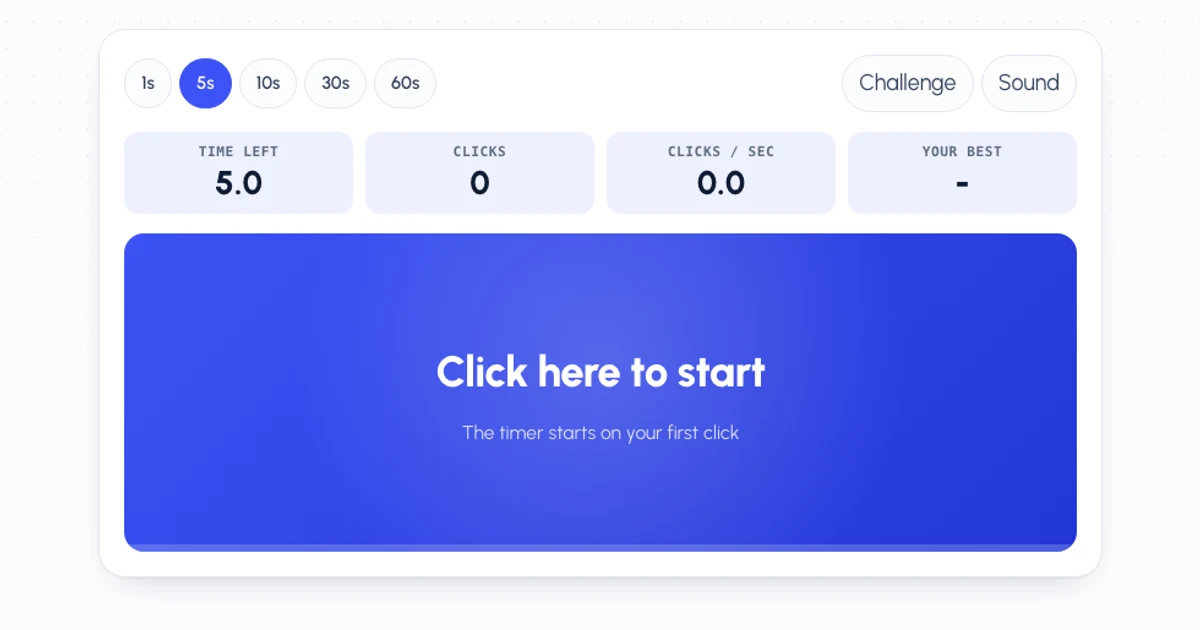
Auto clickers are also useful for checking hardware: whether a game or app registers every click, or how fast a setup can go. Try it on our auto clicker test.
What an Auto Clicker Can’t Do
An auto clicker clicks blindly. It doesn’t see the screen, so it can’t react to what happens: if a pop-up appears or a button moves, it keeps clicking the same spot. It also can’t make decisions, like choosing which upgrade to buy.
For anything with several steps, use Record & Playback, which repeats a recorded sequence of clicks, key presses and mouse movements. For anything that needs to react to the screen, you’d need a scripting tool rather than an auto clicker.
The Settings You’ll Use
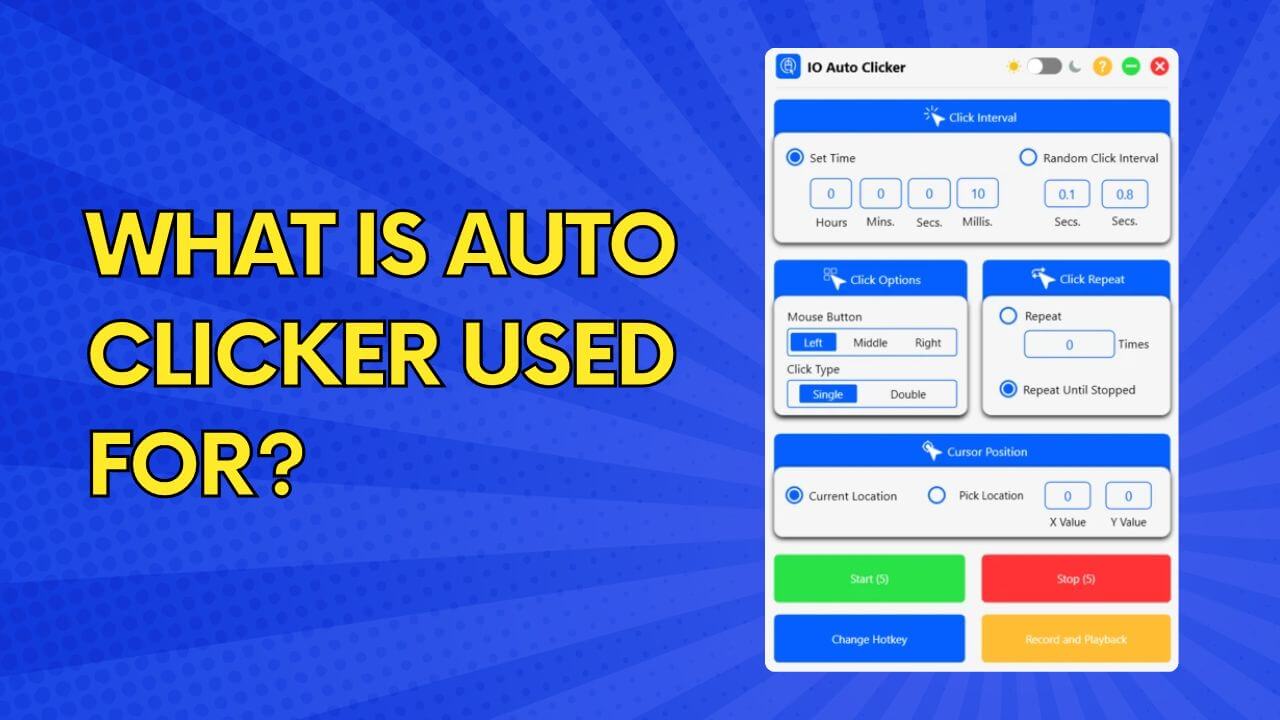
Most auto clickers have the same handful of settings:
- Click interval: the time between clicks, from milliseconds to hours. 100 ms means 10 clicks per second.
- Mouse button and click type: left, middle or right; single or double.
- Repeat: a set number of clicks, or keep going until you stop it.
- Cursor position: wherever your pointer is, or one fixed spot on the screen.
- Hotkey: the key that starts and stops it (F6 in IO Auto Clicker).
Our auto clicker settings guide explains each one, with the best values for common games.
How to Use an Auto Clicker
-
Download one from a trusted source
IO Auto Clicker is free for Windows, with apps for Mac and Android. Avoid copies from random download sites, which often come bundled with adware.
-
Set it up
Choose the interval, the mouse button and click type, and whether it repeats a set number of times or until stopped.
-
Point and press F6
Move your pointer where you want the clicks, press F6 to start, and press it again to stop.
Tip: try it in an empty window first, so you get used to starting and stopping it before it clicks anything that matters.
Is Using an Auto Clicker Allowed?
Auto clickers are legal software. Whether you can use one somewhere depends on that place’s rules: single-player and idle games are usually fine, while many online and competitive games ban them and can suspend accounts that use them. The same goes for websites with terms against automation. When in doubt, check the rules.
Frequently Asked Questions
What does an auto clicker do?
It clicks your mouse automatically, at an interval you set, in one spot or wherever your pointer is, until you stop it with a hotkey.
Is an auto clicker safe to use?
Yes, if you download it from its official site or an app store. Copies on third-party download sites are the main risk, as they can carry adware or malware.
Can I get banned for using an auto clicker?
In games that forbid automation, yes. Stick to single-player, idle and offline games, or check each game’s rules.
Can I use an auto clicker on my phone?
Yes. On Android, use the IO Auto Clicker app. On iPhone and iPad, use Apple’s built-in Switch Control (guide).