On this page
Chromebooks are lightweight laptops running Google’s ChromeOS, built for web-based work with tight Google integration. When you’re stuck with repetitive clicking, an auto clicker does the work for you. Your Chromebook already has one.
Quick answer
Open Settings → Accessibility → Cursor and touchpad and turn on “Automatically click when the cursor stops”. Your Chromebook now clicks wherever the pointer rests. No download needed. On older ChromeOS versions, Accessibility is under Settings → Advanced.
Show me the steps3 Ways to Auto Click on a Chromebook
Pick the method that fits what you need.
| Method | Download? | How you click | Best for |
|---|---|---|---|
| Built-in auto clicker No download | None | Clicks when the pointer stops | School Chromebooks, quick tasks |
| IO Auto Clicker app | Google Play | Timed taps, multiple targets, swipes | Games and precise timing |
| Chrome extension | Chrome Web Store | Automates clicks in Chrome | Websites and browser games |
Method 1: Turn On the Built-in Auto Clicker (No Download)
ChromeOS has an accessibility feature called automatic clicks. Once it’s on, your Chromebook clicks automatically whenever the pointer stops moving. It works on any Chromebook, including school ones, unless your school’s administrator has turned it off.
-
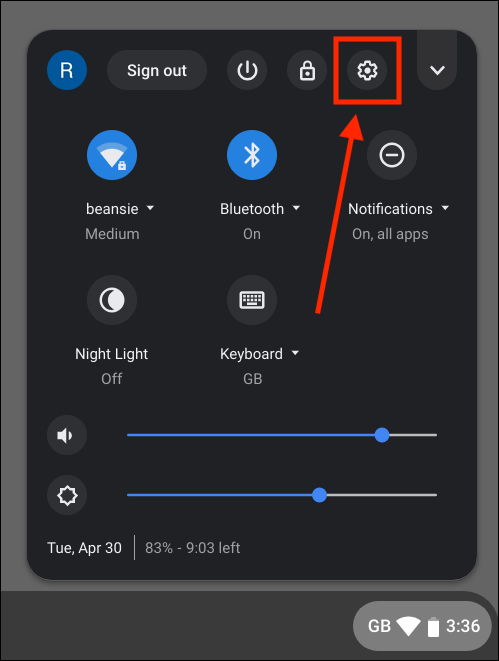
Open Quick Settings
Click the time in the bottom-right corner of the screen. The Quick Settings panel opens.
-
Open Settings
Click the gear icon at the top of the panel.
-
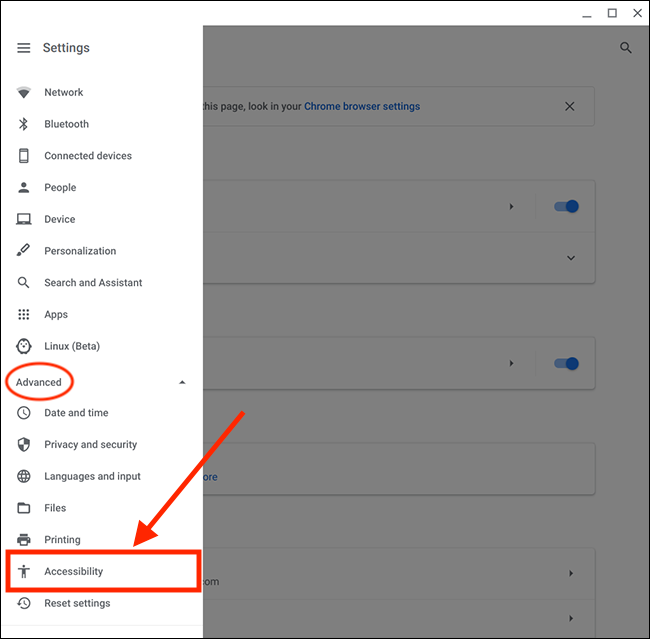
Go to Accessibility
Click Accessibility in the left menu. On older ChromeOS versions, click Advanced first, then Accessibility and Manage accessibility features.
-
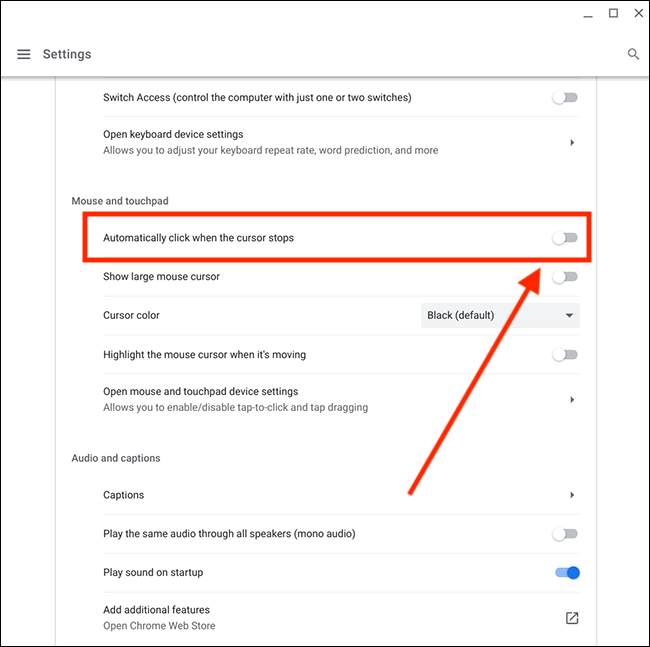
Turn on automatic clicks
Open Cursor and touchpad and turn on “Automatically click when the cursor stops”. The toggle turns blue when it’s on.
On a school Chromebook? Your school’s administrator controls which settings are available. If the option is missing or greyed out, it has been turned off for your account. Ask your school’s IT team.
Built-in Auto Clicker Settings
Once automatic clicks is on, these options appear right below the toggle:
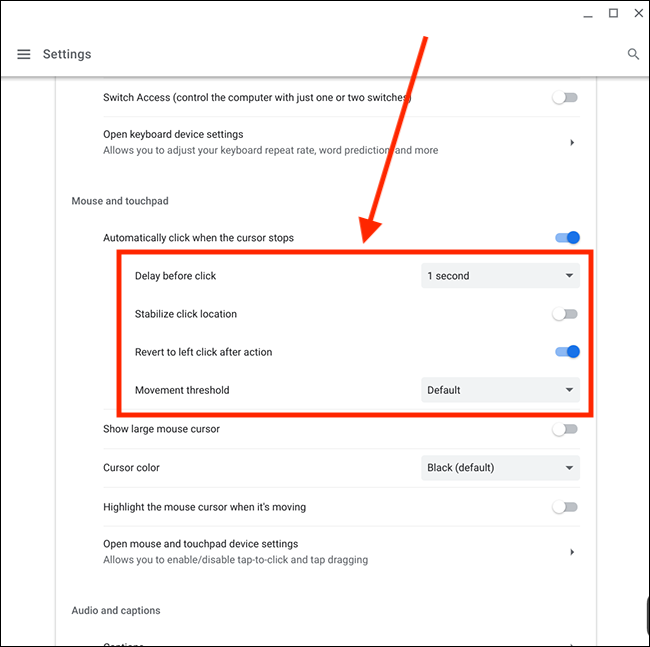
- Delay before click: how long the pointer must stay still before it clicks, from 0.6 to 4 seconds. Pick 2 seconds, for example, and the Chromebook clicks after the pointer has rested for 2 seconds.
- Stabilize click location: keeps the click on the same spot even if the pointer drifts slightly, until you move it with the touchpad.
- Revert to left click after action: after a right click, double click, or other action, the next automatic click goes back to a normal left click.
- Movement threshold: sets the size of the ring around the pointer. Use a small ring for precise clicks on small buttons, and a larger one for big targets.
Settings for clicking one spot repeatedly
- Delay before click
- 0.6 seconds (the fastest)
- Stabilize click location
- On
- Revert to left click
- On
- Movement threshold
- Small
While automatic clicks is on, a small menu appears on screen. Use it to switch between left click, right click, double click, click and drag, and scroll (up, down, left, or right), or to pause automatic clicks.
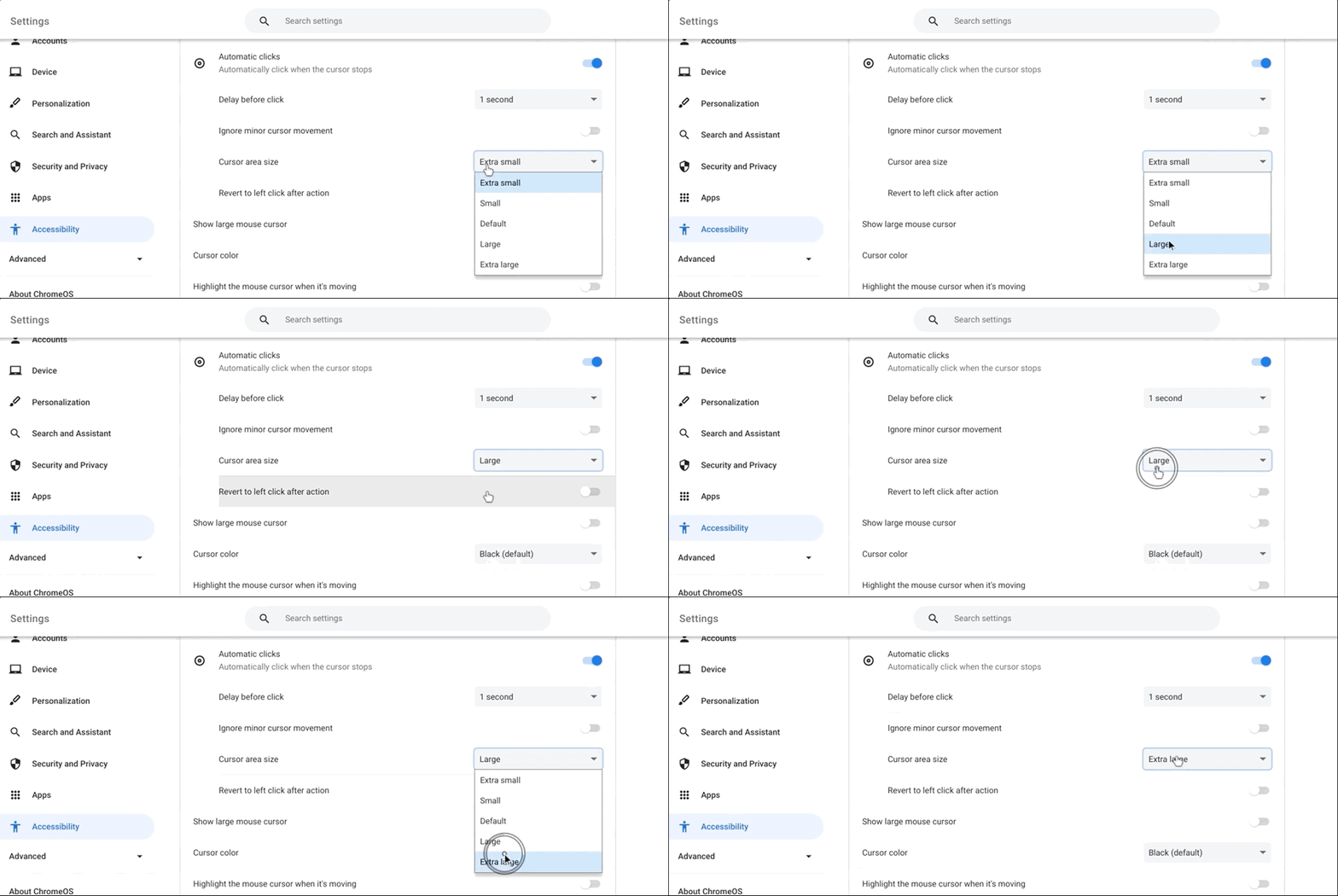
The built-in clicker is limited to one click each time the pointer stops, so it can’t click hundreds of times per second. For games and fast, timed clicking, use the app or the extension below.
Method 2: Get the IO Auto Clicker App from Google Play
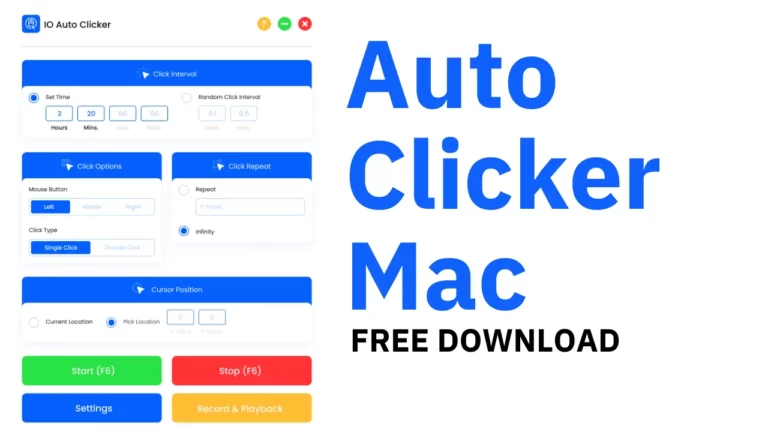
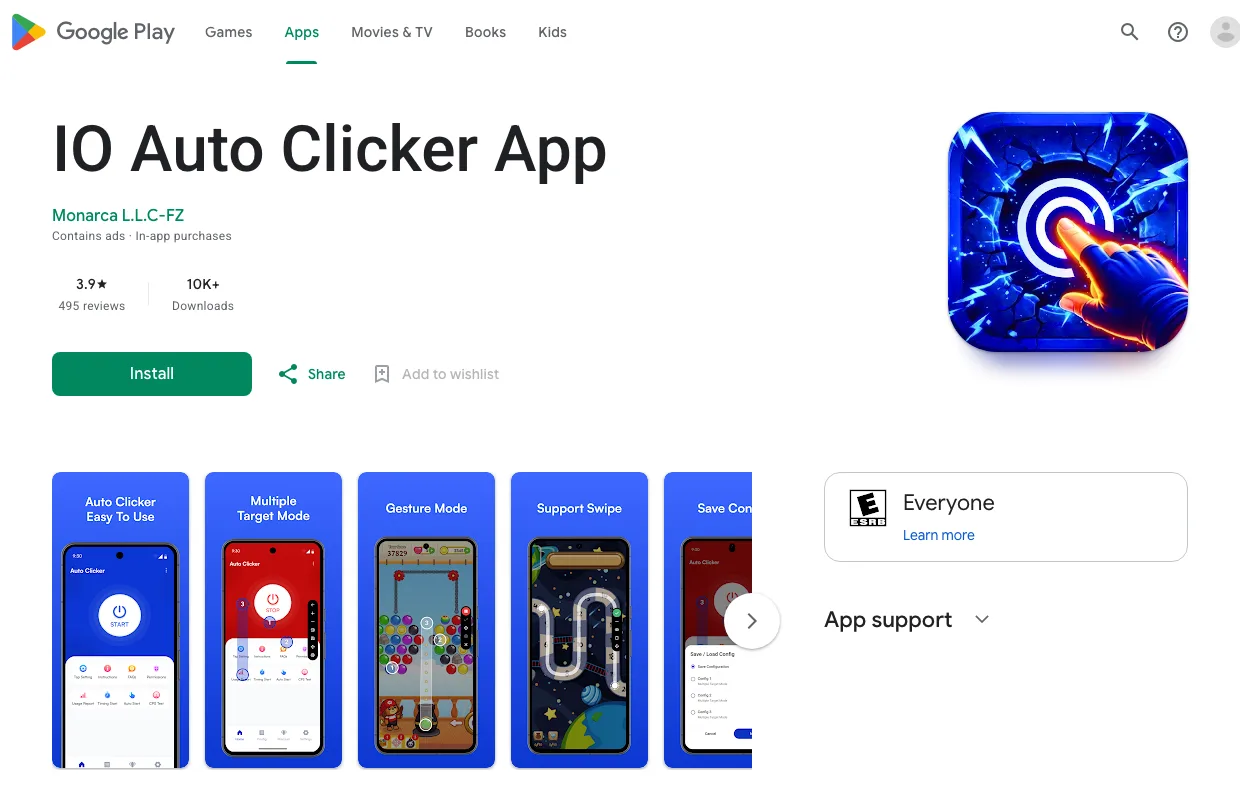
Most Chromebooks can run Android apps from Google Play. IO Auto Clicker App adds timed taps, multiple click targets, swipes, and saved configurations. It’s free, with ads and optional in-app purchases.
-
Turn on Google Play
Open Settings → Apps → Google Play Store, click Turn on, and accept the terms. You can also open Quick Settings with Alt + Shift + S and click the gear icon to get to Settings.
-
Install IO Auto Clicker App
Open the IO Auto Clicker App listing (or search for “IO Auto Clicker App” in the Play Store) and click Install. The app appears in your launcher when it’s done.
-
Allow clicking and start
Open the app, follow the setup, and allow it to perform clicks when it asks. Then set your interval, place the target, and start clicking from the floating panel. For more detail, see our IO Auto Clicker for Android guide.
Schools often turn off Google Play on managed Chromebooks. If you don’t see the Google Play Store option in Settings, use the built-in method instead.
Method 3: Use the Auto Clicker Chrome Extension
Don’t want to install an app? Our Auto Clicker extension runs right inside Chrome, takes up very little space, and is used by 100,000 people.

- Open the Auto Clicker extension on the Chrome Web Store.
- Click Add to Chrome, then Add extension.
- Click the puzzle-piece icon in Chrome’s toolbar and pin Auto Clicker so it’s always one click away.
For every setting and how to use it, read our Auto Clicker Chrome extension guide. The same extension works on Chrome for Windows and Mac.
Frequently Asked Questions
Does an auto clicker work on a Chromebook?
Yes. Every Chromebook has a built-in auto clicker. Turn on “Automatically click when the cursor stops” in Settings → Accessibility → Cursor and touchpad. You can also install the IO Auto Clicker app from Google Play or the Auto Clicker Chrome extension.
How do you auto scroll on a Chromebook?
Turn on automatic clicks, then choose Scroll in the automatic clicks menu that appears on screen. Rest the pointer on the up, down, left, or right arrow to scroll in that direction.
What is the best auto clicker for Chromebook?
For quick tasks and school Chromebooks, the built-in auto clicker is the easiest because there’s nothing to install. For games and timed clicking, IO Auto Clicker App gives you intervals, multiple targets, swipes, and saved setups. For clicking on websites, use the Chrome extension.
How do I automatically click a button on a website in Chrome?
Turn on the built-in auto clicker (Settings → Accessibility → Cursor and touchpad → “Automatically click when the cursor stops”) and rest the pointer on the button. For repeated clicks at a set interval, use the Auto Clicker Chrome extension.
Does an auto clicker hurt your computer?
No. The built-in auto clicker is part of ChromeOS, and apps and extensions are safe as long as you install them from Google Play or the Chrome Web Store.
Can I use an auto clicker on a school Chromebook?
Usually, yes. The built-in auto clicker needs no download. Schools can turn off accessibility settings, Google Play, or extensions on managed Chromebooks, so if an option is missing, it has been disabled by your school’s administrator.
The Bottom Line
Start with the built-in auto clicker. It’s already on your Chromebook and takes under a minute to switch on. If you need faster, timed clicking for games, get IO Auto Clicker App from Google Play. And for automating clicks on websites, the Chrome extension is the lightest option.