On this page
An auto clicker clicks your mouse for you, at the speed you set, for as long as you let it run. You don’t change anything on the mouse itself. All the setup happens in the auto clicker. This guide uses IO Auto Clicker, but most auto clickers have the same basic settings.
Quick answer
Open IO Auto Clicker, choose the mouse button (usually Left) and click type, set the click interval (100 ms is a good start), pick Repeat Until Stopped, leave the cursor on Current Location, then move your mouse over the target and press F6. Press F6 again to stop.
Download IO Auto ClickerHow to Set Up an Auto Clicker, Step by Step
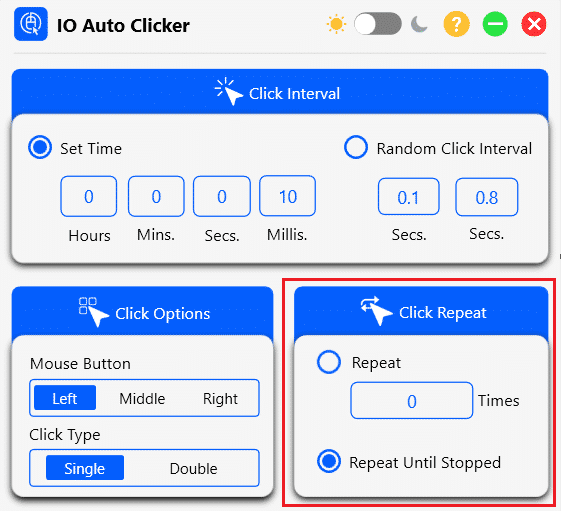
First, download IO Auto Clicker for Windows (it’s also available for Mac and Android). Everything you need is on one screen:
-
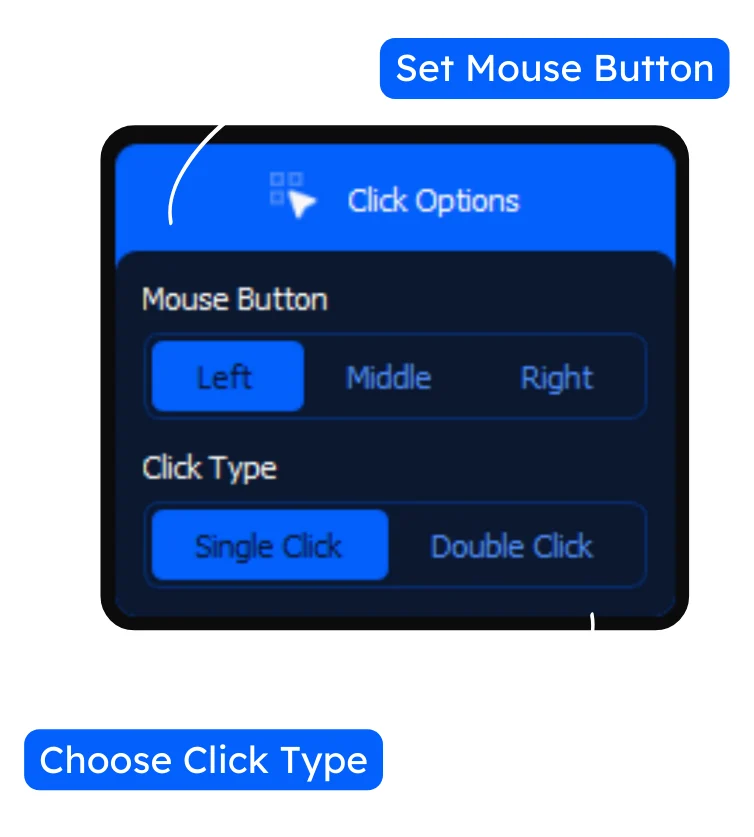
Choose the mouse button and click type
Under Click Options, pick the Mouse Button (Left, Middle or Right) and the Click Type: Single or Double.
- Left is what you need most of the time: clicking buttons, attacking, collecting.
- Right is for using items, placing blocks, aiming, or opening context menus.
- Middle (the scroll-wheel button) is rarely needed, except in apps that map an action to it.
- Double Click sends two clicks each time, for opening files or selecting a word.
-
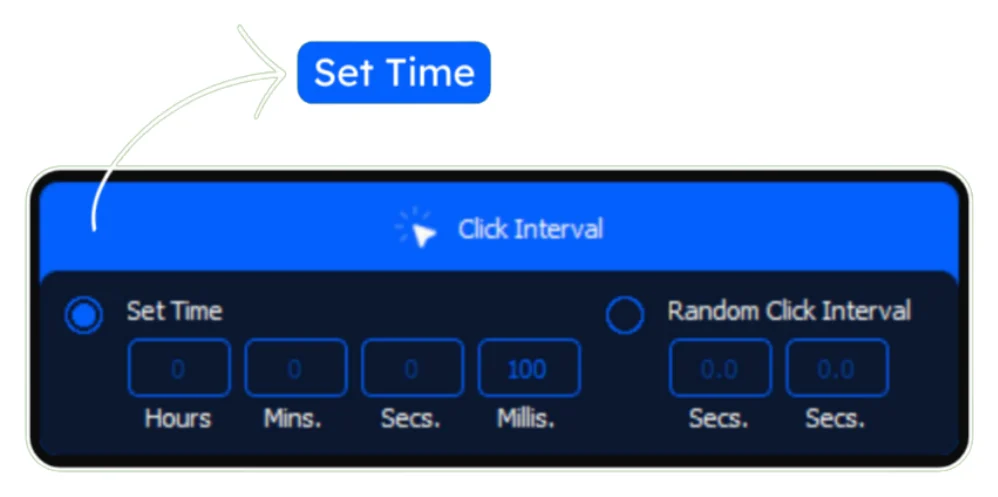
Set the click interval
The Click Interval is the time between clicks. With Set Time, enter it in hours, minutes, seconds and milliseconds (1,000 ms = 1 second). A 100 ms interval means 10 clicks per second.
Choose Random Click Interval instead to click at a random time between two values in seconds, say anywhere from 0.1 to 0.8 seconds.
-
Choose how many times to click
Under Click Repeat, choose Repeat and enter a number to stop after that many clicks, or Repeat Until Stopped to keep clicking until you press the hotkey again.
-
Pick where to click
Current Location clicks wherever your mouse pointer is, so you can move the pointer while it runs. Pick Location clicks one fixed spot on the screen, set by its X and Y coordinates. Use it when the button you need never moves.
-
Start and stop with F6
Move to the window you want to click in and press F6 to start. Press F6 again to stop. If F6 is already used by a game or another app, choose Change Hotkey and set a different key.
Best Auto Clicker Settings for Common Tasks
The best settings depend on what you’re clicking. Faster isn’t always better: very short intervals can make a game lag or drop clicks, and some games only register a click every so often. Start with these, then adjust:
| Task | Button | Interval | Clicks per second | Repeat |
|---|---|---|---|---|
| Idle and clicker games | Left | 10-50 ms | 20-100 | Until stopped |
| Roblox simulators | Left | 50-100 ms | 10-20 | Until stopped |
| Minecraft Java AFK farm | Left | 625 ms | 1.6 | Until stopped |
| Placing blocks, using items | Right | 100-250 ms | 4-10 | Until stopped |
| Web pages, forms, data entry | Left | 0.5-2 s | 0.5-2 | A set number |
Tip: to work out clicks per second, divide 1,000 by the interval in milliseconds. 50 ms = 20 clicks per second; 250 ms = 4. Curious how that compares with your own speed? Try our CPS test.
Advanced: Automate Whole Sequences with Record & Playback
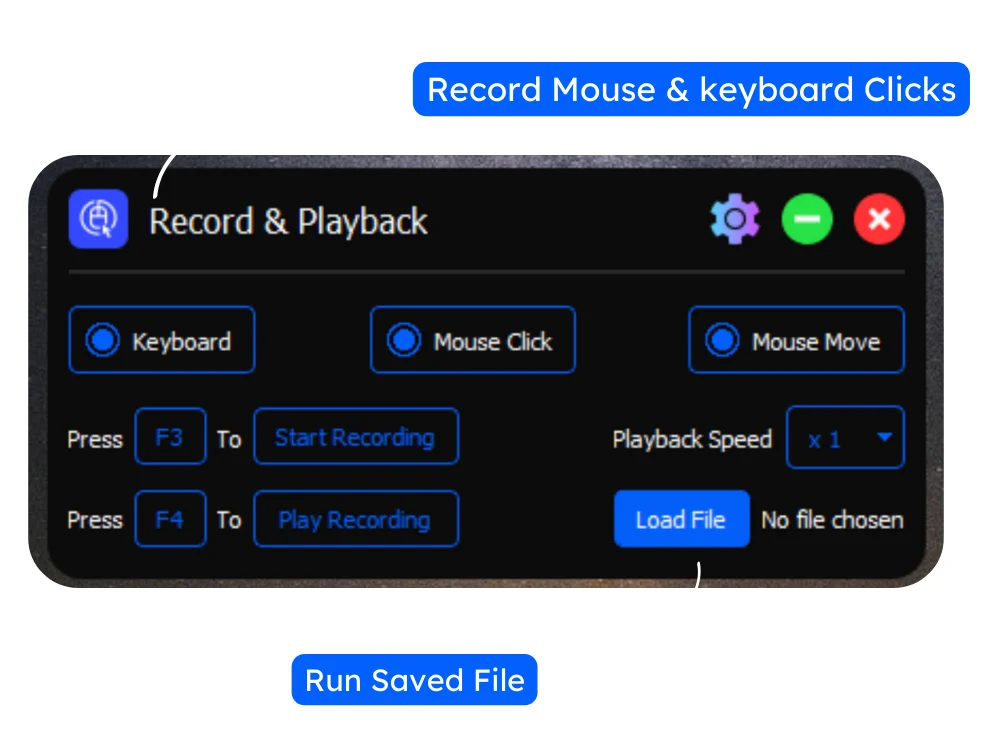
A click interval repeats one click in one place. When a task needs several steps (clicking in different spots, typing, holding a button down), use IO Auto Clicker’s Record & Playback. It records your keyboard, your clicks and your mouse movement, then replays the sequence for you.
-
Choose what to record
Turn on Keyboard, Mouse Click and/or Mouse Move, depending on what your task needs.
-
Record with F3
Press F3 to start recording, then do the task once, exactly as you want it repeated.
-
Play it back with F4
Press F4 to play the recording. Replay it once, a set number of times, or on a loop until you stop it, and change the Playback Speed to run it faster or slower.
-
Save it for later
Save the recording to a file. Next time, click Load File to open it and run it again without re-recording.
Record & Playback is also how you hold a mouse button down, which a normal auto clicker can’t do. You need it for mining in Minecraft.
Does Mouse DPI Matter for an Auto Clicker?
No. DPI (dots per inch) only controls how far the pointer moves when you move the mouse. An auto clicker doesn’t move the mouse. It sends clicks at the pointer’s current position or at fixed screen coordinates, so it clicks in exactly the same place at any DPI. It works the same with a cheap office mouse, a gaming mouse or a laptop trackpad.
DPI only matters for your own aiming, so keep whatever feels comfortable. The one mouse setting that can get in the way is gaming-mouse software: macros or button remapping in apps such as Logitech G HUB or Razer Synapse can clash with an auto clicker, so turn them off while you use one.
Troubleshooting Common Auto Clicker Problems
Nothing happens when I press F6
On many laptops, F6 controls brightness or volume, so you need to press Fn + F6. Another app may also be using F6. Use Change Hotkey in IO Auto Clicker to pick a different key.
The auto clicker works, but not in my game
If the game runs as administrator, Windows blocks clicks from apps that don’t. Right-click IO Auto Clicker and choose Run as administrator. Some online games also block simulated clicks completely, and no auto clicker will work in those.
Clicks land in the wrong place
Pick Location uses screen coordinates. Changing your resolution or display scaling, switching between fullscreen and windowed mode, or moving the window shifts everything on screen, so pick the location again after any of those changes.
The game lags or misses clicks
The interval is too short for the game to keep up. Raise it (try 50 ms, then 100 ms) until every click registers.
Clicking stops when I switch windows
With Current Location, clicks go wherever the pointer is, so they follow you to the new window. Use Pick Location to keep clicking one spot, and note that some games pause when they lose focus (in Minecraft Java, press F3 + P to turn this off).
Safety and Compatibility
Download from the official source. Many auto clickers on third-party download sites come bundled with adware or malware. Get IO Auto Clicker from our download page, the Mac App Store or Google Play.
Check the game’s rules. Auto clickers are fine for single-player games, idle games and everyday tasks. Many online and competitive games ban them, though, and using one there can get your account suspended. Read the rules first. Our Roblox and Minecraft guides cover those games.
Which devices it works on:
- Windows: IO Auto Clicker for Windows.
- Mac: our Mac app from the App Store.
- Android and Chromebook: the Android app, which also runs on most Chromebooks.
- iPhone and iPad: Apple’s built-in Switch Control (see our iPhone guide).
Frequently Asked Questions
What are the best auto clicker settings?
For most uses: Left button, Single click, a 100 ms interval, Repeat Until Stopped and Current Location. Go down to 10-50 ms for idle games, and up to 625 ms for Minecraft Java attacks. See the settings table above.
How do I use IO Auto Clicker?
Set the click interval, mouse button, click type and repeat option, then hover over your target and press F6. Press F6 again to stop.
What is a good click interval?
100 ms (10 clicks per second) works for most games and apps. Lower it if you need more speed, and raise it if clicks get missed or the game lags.
Do I need to change my mouse settings to use an auto clicker?
No. DPI, pointer speed and polling rate don’t affect an auto clicker. The one thing to do is turn off any macros in gaming-mouse software that might clash with it.
Can an auto clicker hold a mouse button down?
Not with a normal click interval. Use Record & Playback: press F3, hold the button as long as needed, then play the recording back with F4.
Can an auto clicker press keys too?
Yes, with Record & Playback. Turn on Keyboard recording and IO Auto Clicker replays your key presses along with your clicks and mouse movement.