On this page
Auto Clicker for Mac is an app that clicks your mouse for you on a MacBook, iMac or Mac mini. People use it for games, data entry and testing: anything where you’d otherwise click the same spot over and over.
- Price
- Free download · 3-day free trial
- Requires
- macOS 12 Monterey or later
- Size
- 14.1 MB
- Start / stop
- F6 (changeable)
Quick answer
Yes, there’s an auto clicker for Mac. Download IO Auto Clicker from the Mac App Store, turn it on in System Settings → Privacy & Security → Accessibility, set your click interval, and press F6 to start and stop. The download is free and includes a 3-day free trial.
Download on the Mac App StoreFeatures of IO Auto Clicker for Mac
User-friendly interface
The app has a single-screen interface that shows every setting up front. Hotkeys keep working even when the app is running in the background, so you never have to switch windows mid-game.
Dark mode for gamers
There’s a dark mode for late-night gaming sessions. The app automatically switches between light and dark mode to match your Mac’s appearance setting.
Unlimited clicking
Perform unlimited clicks in any game. Set the interval down to milliseconds and dominate incremental games like Roblox and Minecraft.
Works on every Mac
From Intel Core i5 and i7 to Apple’s M1, M1 Pro, M1 Max and M1 Ultra, the app is compatible with all Mac processors, including the latest M2, M3 and M4 chips. It runs on MacBook Air, MacBook Pro, iMac, Mac mini and Mac Studio with macOS 12 Monterey or later.
Safe and secure
IO Auto Clicker is distributed through the Mac App Store, and it doesn’t show pop-up ads or clickbait to distract you while you play.
How to Download IO Auto Clicker and Grant Permission
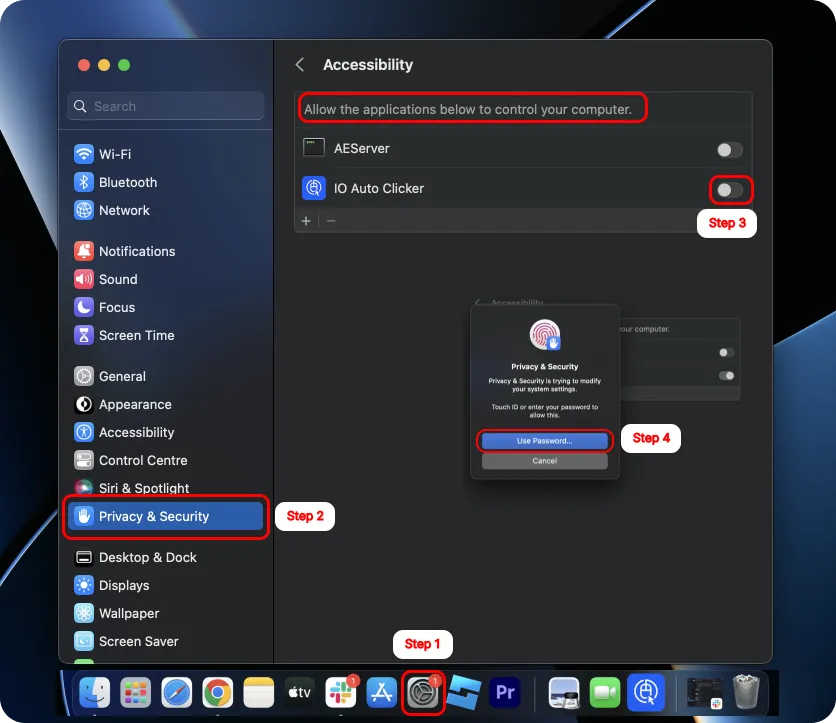
Installing takes a minute. macOS then asks you to allow the app to control your computer. That’s the Accessibility permission, and every Mac auto clicker needs it to click for you.
-
Download from the Mac App Store
Open IO Auto Clicker on the Mac App Store and click Get. Once it’s installed, you’ll find the app in Launchpad and in your Applications folder.
-
Allow Accessibility access
- Open System Settings (the gear icon in your Dock).
- Go to Privacy & Security and click Accessibility.
- Find IO Auto Clicker under “Allow the applications below to control your computer” and turn its toggle on.
- Enter your password or use Touch ID when asked. The toggle turns blue once permission is granted.
-
Start clicking
Open IO Auto Clicker, choose your settings, and press F6. We also have an Android version for your mobile games, and a guide to auto clicking on iPhone and iPad.
Tip: on many Mac keyboards the top row controls brightness and volume, so you may need to hold fn while pressing F6. To use F-keys directly, turn on “Use F1, F2, etc. keys as standard function keys” in System Settings → Keyboard, or pick a different hotkey in the app.
How to Set Up Your First Auto Click
Say you want 30 clicks in one minute. Set the app up like this:
30 clicks per minute
- Set time
- 0 h · 0 m · 2 s · 0 ms
- Click repeat
- Repeat · 30 times
- Mouse button · click type
- Left · Single click
- Cursor position
- Current location
Start the app and it stops on its own after 30 clicks. The 2-second interval means there’s a 2-second gap after each click, so 30 clicks take one minute. Choose Infinity under Click Repeat instead if you want unlimited clicks.
Every Setting in IO Auto Clicker for Mac
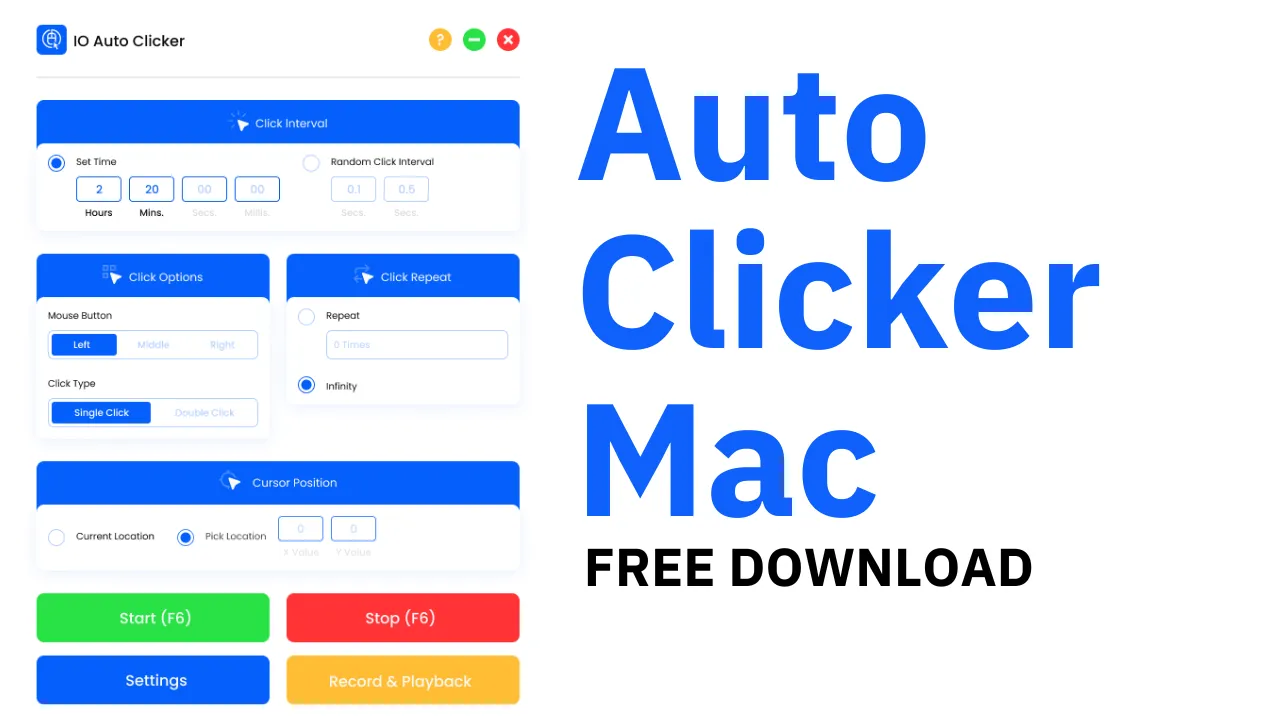
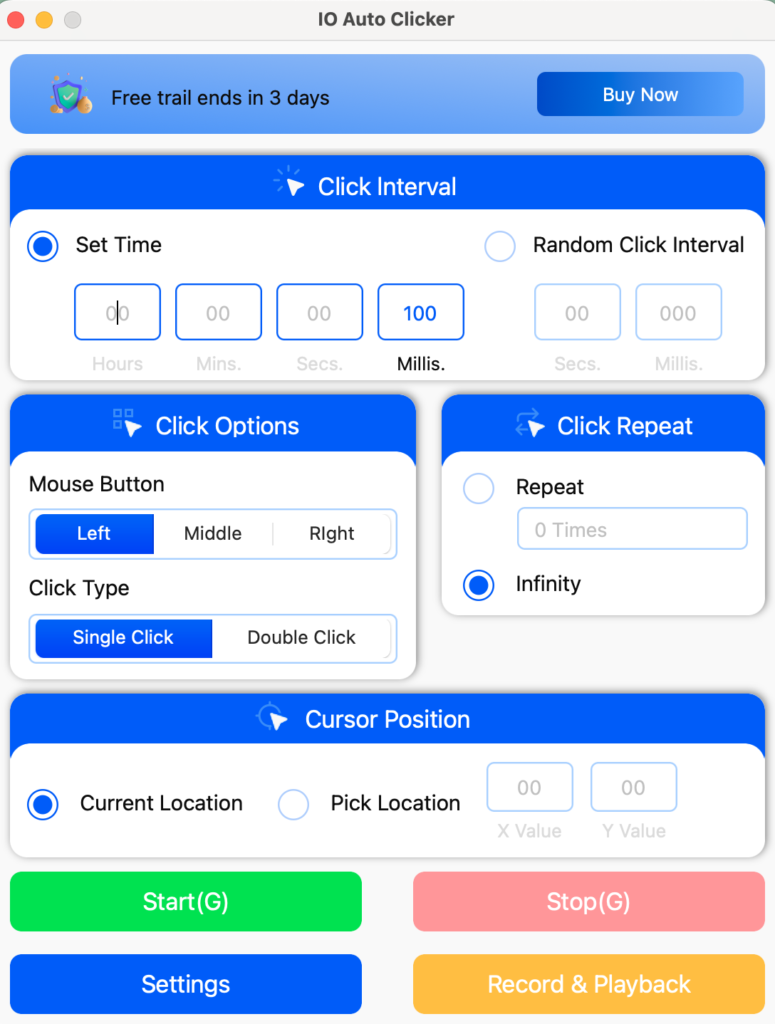
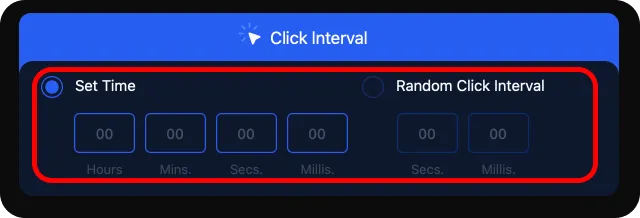
Click interval
Choose the exact time between two clicks with Set Time, in hours, minutes, seconds, and milliseconds. Seconds and milliseconds work best for games. Pick Random Click Interval to vary the gap between a minimum and maximum value for more natural-looking clicks.
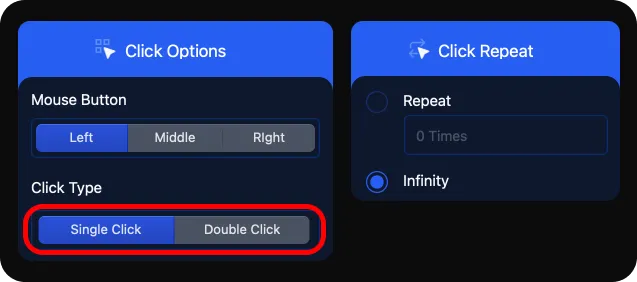
Click type
Choose Single Click or Double Click. Use Double Click for opening files or selecting words in Google Docs and other work apps.
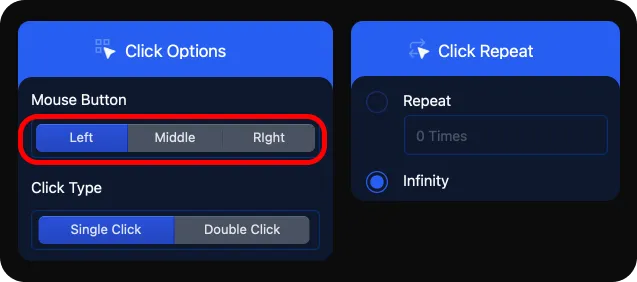
Mouse button
Choose the left, middle, or right mouse button to match your game or work task.
Cursor position
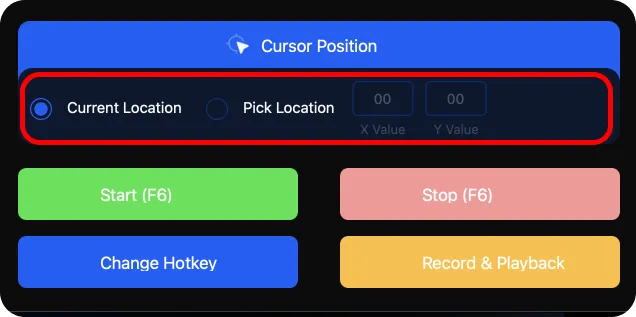
Where you click matters most. Current Location clicks wherever your pointer is. If you prefer exact numbers, Pick Location lets you enter X and Y coordinates so every click lands on the same spot.
Click repeat
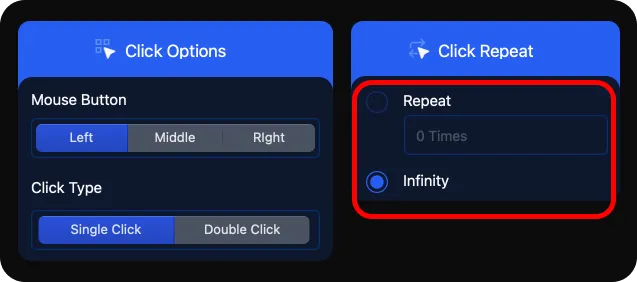
Select Infinity for non-stop clicking in games like Minecraft, Roblox, or Cookie Clicker. If you need a fixed number of clicks (say 8 or 10), choose Repeat, enter the count, and the app stops automatically when it’s done.
Start and stop buttons
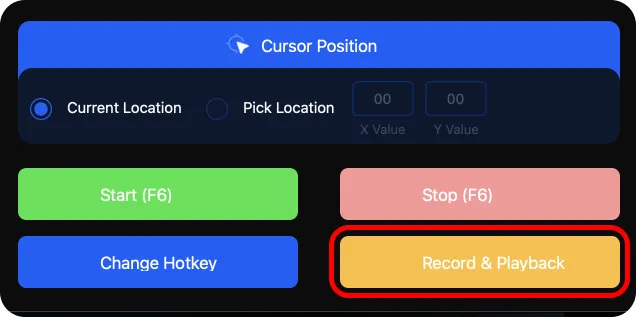
Press the green Start button to begin clicking and the red Stop button to end it. Both show the current hotkey on the button.
Record & Playback
Record a sequence of clicks once, save it, and replay it whenever you need, a bit like an Excel macro. Play it back once to check it before you rely on it.
Hotkeys
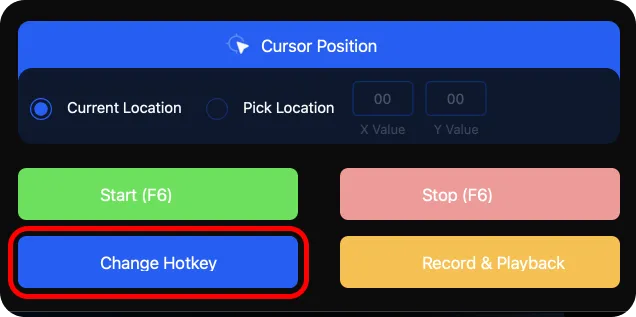
Hotkeys start and stop clicking with a single keystroke. F6 is the default; click Change Hotkey to pick any key you prefer.
Auto Clicker for Roblox on Mac
IO Auto Clicker works with the Roblox app on Mac, including on MacBook Air and MacBook Pro. Once the Accessibility permission is on:
- Open Roblox and join your game.
- In IO Auto Clicker, set a short interval. Try 100 milliseconds and lower it if the game keeps up.
- Choose Infinity under Click Repeat.
- Keep Current Location so the clicks follow your pointer, or use Pick Location for a fixed button.
- Switch back to Roblox and press F6 (or fn + F6) to start and stop.
Check the rules of each Roblox experience before you automate, since some games don’t allow it. For the best settings and a comparison of Roblox auto clickers, read our auto clicker for Roblox guide.
Pricing and Free Trial
IO Auto Clicker is a free download and comes with a 3-day free trial. You aren’t charged during the trial. To keep using the app afterwards, choose one of these in-app purchases:
| Plan | Price |
|---|---|
| Monthly | $9.99 |
| 6 months | $15.99 |
| Yearly | $19.99 |
| Lifetime Best value | $39.99 |
Prices are from the US Mac App Store and may vary by country. Payment is charged to your Apple account when you confirm a purchase, and you can manage auto-renewal in your App Store account settings.
Benefits of Using a Mac Auto Clicker
Eliminate repetitive tasks
Use the app to get rid of repetitive data-entry tasks that need constant clicking. It saves a huge amount of time, and you can save a Record & Playback macro for tasks you repeat often.
Low CPU usage
At about 14 MB, the app is lightweight and uses very little processing power, so it won’t slow down your game.
Break gaming records
Play incremental games like Cookie Clicker, take the CPS test, and beat high scores with ease. It also works for sandbox games like Minecraft and makes a great auto clicker for Roblox.
Reduces strain from constant clicking
Constant clicking puts pressure on your fingers and wrist, which is linked to repetitive strain injuries such as carpal tunnel syndrome. Data-entry workers and gamers who play for hours are most at risk. Letting the app handle the repetitive clicks takes that load off your hand.
Why Use IO Auto Clicker for Mac?
- Try before you buy: every download includes a 3-day free trial, so you can test the app before choosing a plan.
- Chat support: an active Discord channel answers questions about the app, with 24/7 support for most queries.
- Feedback: tell us about bugs or features you’d like to see. We aim to respond within 48 hours. You can also reach us through the support page.
- Chrome extension: prefer something lighter? Our auto clicker Chrome extension works right in your browser.
Frequently Asked Questions
Is there an auto clicker for Mac?
Yes. IO Auto Clicker is built for Macs and available on the Mac App Store. It works on MacBook Air, MacBook Pro, iMac and Mac mini with macOS 12 or later.
How do I turn on the auto clicker on my Mac?
First allow IO Auto Clicker in System Settings → Privacy & Security → Accessibility. Then press the default hotkey F6 (you may need fn + F6) or click Start.
Is there a free auto clicker for Mac?
IO Auto Clicker is free to download and includes a 3-day free trial. After the trial, an in-app purchase is needed to keep using it: monthly, 6-month, yearly or lifetime. See pricing.
Is there an auto clicker for Mac with hotkeys?
Yes. IO Auto Clicker starts and stops with F6 by default, and you can set any other key with Change Hotkey.
How do you simulate mouse clicks on a Mac?
Use an auto clicker such as IO Auto Clicker. Grant it Accessibility access, choose the interval, button and position, and it clicks for you.
Does IO Auto Clicker work on M1, M2, M3 and M4 Macs?
Yes. It runs on Apple silicon (M1 to M4) and on Intel Macs, as long as they run macOS 12 Monterey or later.