On this page
The best auto clicker for Roblox takes the endless clicking out of simulators, tycoons and combat games. We play a lot of Roblox ourselves, and we know how fast the clicking gets old.
For those new to the platform, Roblox isn’t a single game but a collection of over 40 million games with an active monthly user base of above 100 million. Almost all of them are made by players, and a lot of the popular ones come down to clicking one button thousands of times.
Quick answer
IO Auto Clicker is our pick for Roblox. It’s free, starts and stops with F6, clicks at intervals down to 1 millisecond, and has Repeat Until Stopped and Record & Play for combos. On mobile, use the IO Auto Clicker app on Android, or Apple’s built-in Switch Control on iPhone and iPad.
Download IO Auto ClickerOur team spent over 100 hours testing 65 different auto clickers across popular Roblox experiences like Adopt Me!, Pet Simulator X, and Ninja Legends. We evaluated each of these software based on performance, setup ease, and compatibility with Roblox’s unique structure.
We also checked each one for bundled malware and ban risk. A faster clicker isn’t worth losing your account over.
Best Roblox Auto Clicker for 2026
Here’s how the six auto clickers we tested compare at a glance.
| Auto clicker | Start / stop | Stand-out feature | Best for |
|---|---|---|---|
| IO Auto Clicker Our pick | F6 | Record & Play, random intervals | Most Roblox players |
| OP Auto Clicker | F6 | Everything on one screen | Quick, simple setup |
| GS Auto Clicker | F8 | One-button clicking | The simplest option |
| Forge Auto Clicker | F6 / F4 | Clicks only in a chosen window | Keeping clicks inside Roblox |
| Speed AutoClicker | Ctrl (hold or toggle) | Clicks-per-second rate | Speed-focused games |
| Free Mouse Clicker | Ctrl+F2 / Ctrl+F3 | Very light on system resources | Beginners and older PCs |
1. IO Auto Clicker Our pick
Start / stop: F6
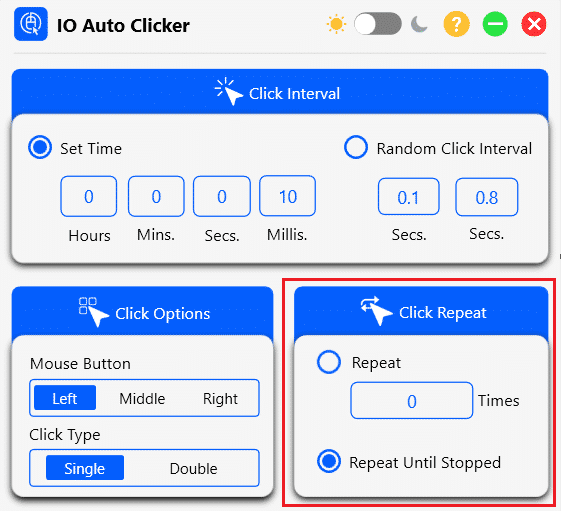
When it comes to Roblox, IO Auto Clicker can solve all your problems. From repetitive tasks to winning clicking games, this auto clicker has it all.
It comes with a colorful interface and lets you customize the click interval and click repeat. You can even choose your click type and preferred mouse button for games.
Features
- Ultra-precise timing control: Set exact click intervals in hours, minutes, seconds and milliseconds.
- Random interval generation: Create natural-looking click patterns with the Random Click Interval feature, which varies timing between a minimum and maximum value.
- Specific cursor positioning: Target exact screen coordinates with the Pick Location feature and X/Y inputs for location-specific clicking.
- Dark/light mode toggle: Switch between interface themes with the sun/moon toggle for comfortable use in any lighting.
- Record and playback: Capture complex clicking sequences with the Record and Playback feature to automate multi-step Roblox tasks.
Pros
- User interface A simple interface that beginners pick up in a minute.
- Precise control Customizable click intervals for precise control over timing.
- Low resource usage Lightweight design with minimal system resource usage.
- Click support Supports both single and double-click automation.
Cons
- Cross-platform limitations Settings don’t sync between devices, so each system needs its own setup.
2. OP Auto Clicker
Start / stop: F6
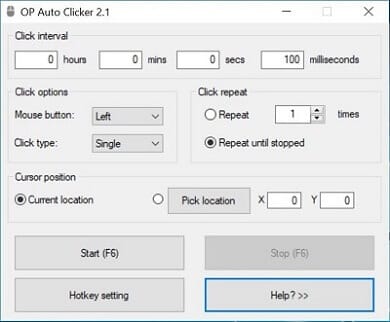
This auto clicker comes with one of the cleanest and simplest interfaces you will ever encounter. All your customization is on one single screen, and you can pick any location to automate your clicks. That matters in Roblox games where you want every click to land on one exact button.
Features
- Streamlined minimalist design: A clean, compact interface with all essential controls in logical sections for quick setup.
- Millisecond precision: Fine-tune clicking speed with millisecond control for perfectly timed interactions in Roblox games.
- Location selection: Switch between the current cursor position and specific X/Y coordinates with the location picker.
- Built-in help: Get guidance through the dedicated “Help” button for troubleshooting and advanced tips.
- Function key integration: Uses the F6 hotkey by default, customizable through the “Hotkey setting” button.
Pros
- Minimalist interface Simple, straightforward design that’s easy to understand and operate quickly.
- Remembers your settings Your interval, button and location are saved between sessions.
- Virus-free with no ads No advertisements or unwanted toolbars.
Cons
- Limited location options Lacks area selection for random clicking within a defined region.
- Limited customization Missing advanced features like randomization and complex sequence recording.
3. GS Auto Clicker
Start / stop: F8
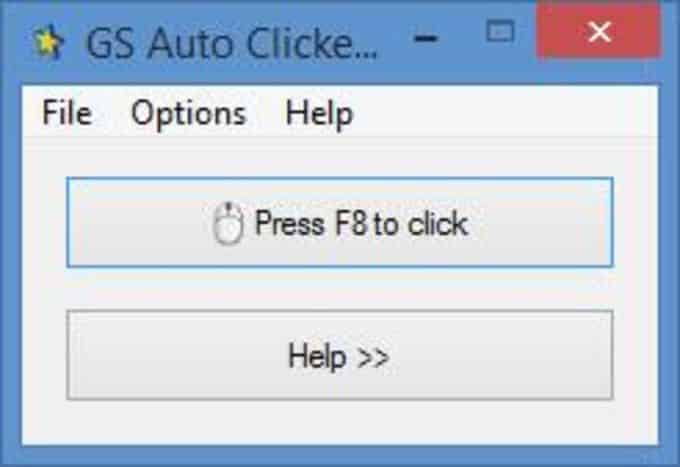
GS Auto Clicker is another good option. The main screen has two buttons, so there’s almost nothing to learn, and it runs without lag.
Features
- One-touch activation: Its simple “Press F8 to click” functionality allows instant operation with minimal setup time.
- Ultra-lightweight design: A tiny interface with minimal resource usage for smooth background operation during Roblox gameplay.
- Menu bar navigation: Access additional configurations through the File and Options menus.
- Built-in help section: A help button on the main screen gives immediate access to instructions and troubleshooting tips.
- Broad compatibility: Works across Windows versions to support Roblox play on different setups.
Pros
- Sequence recording Records and replays multi-step click patterns.
- Text automation Inserts custom text and repeats phrases automatically.
- Ad-free experience No intrusive advertisements or subscription prompts.
Cons
- Basic interface The basic UI may lack visual appeal for some users.
- No dark mode Lacks the dark mode many gamers prefer for long night sessions.
4. Forge Auto Clicker
Start / stop: F6F4
Forge offers a lot of functions when it comes to automating your clicks. You can customize your clicks for the left, right, and middle mouse buttons.
Features
- Adjustable click intervals: Set the timing between clicks precisely, ideal for timing-sensitive Roblox mini-games.
- Multiple click types: Switch between single clicks, double clicks, or custom patterns depending on the game.
- Mouse button selection: Choose the left, right, or middle mouse button to match different in-game controls.
- Window focus control: Target a specific window with the “Change Window” function so clicks only register in Roblox.
- Preset click limits: Set an exact number of clicks (up to 100) or use unlimited mode for repetitive actions.
Pros
- User-friendly interface Clearly labeled options make it easy to configure click intervals and repetitions quickly.
- Customizable hotkeys Comes with preset keys (F6 to start, F4 to stop) and allows users to change them to their preferred shortcuts.
- Virus-free with no ads No advertisements or unwanted toolbars.
Cons
- Limited repeat options It has a “Repeat Until Stopped” option, but the numbered repeat maxes out, so long sessions may need a manual restart.
- Basic functionality only Lacks randomized click patterns or area-specific clicking that can help in more complex Roblox games.
5. Speed AutoClicker
Start / stop: Ctrl
As the name suggests, this is one of the fastest auto clickers on the market. Speed matters in Roblox, which makes it a strong choice for click-heavy games.
Features
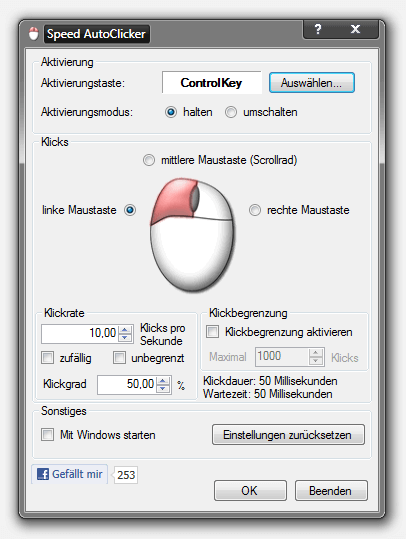
- Click rate control: Set exact clicks per second (10 CPS shown in the screenshot) for different Roblox games.
- Random click pattern: Toggle the random option for more natural-looking click patterns.
- Click duration: Adjust click duration and wait time in milliseconds (50 ms shown) for rhythm-based games.
- Click limit: Set a maximum click count (1,000 shown) for controlled automation sessions.
- Activation modes: Choose between “hold” and “toggle” activation to suit your gameplay.
Pros
- Minimalist interface Simple, straightforward design that’s easy to understand and operate quickly.
- Hold or toggle modes Click only while you hold the key, or switch clicking on and off.
- Virus-free with no ads No advertisements or unwanted toolbars.
Cons
- Limited location options Lacks area selection for random clicking within a defined region.
- Limited customization Missing advanced features like complex sequence recording.
6. Free Mouse Clicker
Start / stop: Ctrl+F2Ctrl+F3
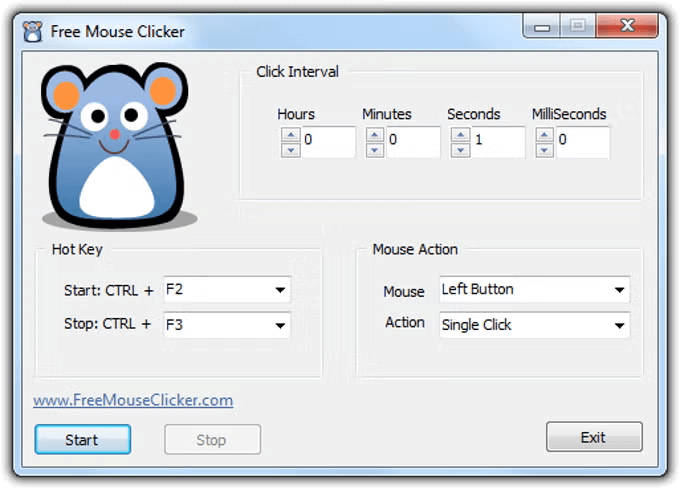
Free Mouse Clicker is a lightweight clicker with a cartoon mouse on its interface. It covers the basics and nothing more, which suits beginners who don’t want to configure much.
Features
- Intuitive timing controls: Precise hour, minute, second, and millisecond adjustment.
- Customizable keyboard shortcuts: Pre-configured with Ctrl+F2 to start and Ctrl+F3 to stop.
- Multiple click options: Left or right button selection, with single or double click modes.
- Minimal CPU usage: Smooth gameplay even on older systems.
- Simple operation: Clear Start, Stop, and Exit buttons for hassle-free control.
Pros
- Beginner-friendly design A simple interface with a cute mascot makes it approachable for everyone.
- Quick setup Ready to use immediately with minimal configuration.
- Zero learning curve Can be mastered in seconds without reading instructions.
Cons
- Limited advanced features Missing record/playback and location targeting.
- No dark mode No dark mode for those late-night gaming sessions.
Steps to Play Roblox Using an Auto Clicker
Start by downloading a trustworthy auto clicker, and only from its official site: plenty of clickers on download sites come with viruses. We recommend IO Auto Clicker, which is free.
After downloading, install the clicker and launch it. Keep its window within easy reach so you can adjust settings quickly.
-
Prepare Roblox for Automation
Open Roblox and navigate to the screen with the movement and action buttons. The aim is to configure the clicker to interact with these buttons automatically, allowing your character to perform actions without manual input.
-
Set Frequently Used Buttons
One of the most used buttons in Roblox is the Fire button, which makes your character shoot. The faster you press it, the faster bullets leave the gun, which is why it’s the first button people automate.
- Set a click point: use Pick Location or enter the X and Y coordinates of the button, or leave the clicker following your cursor.
- Set the click interval to zero in every field for maximum speed.
- Adjust Click Repeat to suit your needs.
Now, when you press the hotkey, your character will automatically start shooting without manual input. This technique works for other buttons like Crouch, Punch, Jump, and Prone as well.
-
Automate Multiple Buttons
For more advanced automation, use features that allow multiple actions. With Record & Play, you record a sequence of clicks across various buttons, save the pattern, and play it back whenever needed. See how Record & Play works.
Why Gamers Choose Roblox
Different players create every world that you visit in Roblox, and there are millions of such worlds to explore and enjoy. Some are about wandering around, some are long mission chains, and most sit somewhere in between.
Use the search panel in the app to find the genres you like: shooters, racing games, zombie games and plenty more.
You can play Roblox on Windows, Mac, Android, iOS, Xbox, PlayStation, and Meta Quest.
Parental Controls
Roblox has multiple settings and controls in place to make the environment safe for everyone, which is why it’s intended for players of all ages. User-created content is moderated to make sure there is nothing disturbing for players.
Violence is still part of many games, and parents might find it inappropriate for their kids. For that, Roblox has parental controls to limit what a child plays, along with monitoring tools to check the account remotely.
Purchases and Monetization
Roblox has an in-game currency, Robux, which players use to buy accessories and paid games. Item prices in the community marketplace change depending on availability, and players can add currency with a credit card to make purchases inside the game. Premium subscription plans add special perks and an extra 10% discount on purchases.
To make money, many players create their own games, and some creators earn a lot. For other gamers, streaming on YouTube and Twitch is an easy way to generate revenue.
How to Use an Auto Clicker for Roblox
Auto clickers are software that automate repeated clicking on the screen, whether on your PC or a smartphone. With the parameters a clicker provides, you can click anywhere on the screen, which makes them ideal for click-based games.
Roblox is one of the games most often played with an auto clicker. Because Roblox’s buttons sit in fixed positions, you can set a target spot once and press the hotkey to start clicking. An auto clicker clicks far faster than a finger can, and it doesn’t get tired.
Best Auto Clicker Settings for Roblox
The first step is to download an auto clicker that is efficient, free, and virus-free. Malware is the biggest problem with random clickers passed around the internet. They can damage your system and hog your CPU.
IO Auto Clicker has everything you need for Roblox: a click interval down to 1 millisecond, click repeat options, a start/stop hotkey, and Record & Play for click sequences. Download IO Auto Clicker for free. After downloading it on your PC, install it, open the application, and launch Roblox.
Rapid-fire setup in IO Auto Clicker
- Click interval
- 0 h · 0 m · 0 s · 0 ms
- Click repeat
- Repeat Until Stopped
- Target
- Fixed spot on the Fire button
- Start / stop
- F6
The first button we will deal with is Fire. The faster you click it, the faster your gun fires. Bring up IO Auto Clicker and set the target point on the fire button. You can lock the clicks to a fixed spot on it, or leave IO Auto Clicker following your cursor so it clicks wherever you point.
Because you want the firing to be as fast as possible, set the hours, minutes, seconds, and milliseconds of the click interval to zero. This is the fastest setting your clicks can achieve. Finally, under Click Repeat, select Repeat Until Stopped.
By default, IO Auto Clicker starts and stops with the F6 key. If you want it otherwise, you can change it to any key you like.
Now go back to your game. Whenever you spot an enemy, press the hotkey and your character will start firing continuously. All you need to do with the mouse is aim. Press the hotkey again to stop.
A similar technique works for the other buttons beside Fire, such as Jump, Crouch, Prone and Punch. As these are movement buttons, you don’t want clicks as fast as Fire: choose a slower interval after setting the target on those buttons, then under Click Repeat choose Repeat and enter the number of clicks you want in one go.
The same setup works in popular click-heavy Roblox experiences, such as Blox Fruits, where fast clicks speed up combat and farming, and simulator games like Pet Simulator.
Record & Play
IO Auto Clicker’s Record & Play feature lets you record a sequence of clicks across several positions and replay it exactly as you set it. Press F3 to start recording, go back to Roblox, and click through the sequence.
You can record any combination of fire and movement you want. For example: 5 clicks on the fire button, two jumps, a crouch, then 5 prone shots. The pace at which you click is duplicated too.
When you’re done, stop the recording and save it. In the game, press F4 when you spot enemies and the whole sequence plays back. Set it to loop if you want it to keep going.
How to Auto Click on Roblox Mobile (iPhone, iPad & Android)
On phones and tablets you need a mobile auto clicker instead of the PC app. Here is how to set one up for Roblox on each platform.
On Android
- Install IO Auto Clicker from Google Play. No root access is required.
- Open the app and allow it to perform clicks when it asks for permission.
- Open the settings and choose the time interval between taps.
- Launch Roblox, place the target on the button you want tapped, and start clicking from the floating panel.
On iPhone and iPad
iPhone and iPad have a built-in auto tapper: Apple’s Switch Control accessibility feature can repeat taps on the screen, including in Roblox. Our iPhone and iPad auto clicker guide walks through the setup step by step.
Whichever device you use, start with a slower interval and check the rules of the experience you are playing, since some Roblox games don’t allow automation.
Frequently Asked Questions
How do I get an auto clicker on Roblox?
Download IO Auto Clicker for free, set the click interval, then press F6 in Roblox to start and stop clicking. On a phone or tablet, follow the mobile steps instead.
Can an auto clicker get you banned?
It can. Roblox and individual experiences can act against automation they consider unfair, especially after player reports. Use an auto clicker for grinding and AFK tasks rather than competitive play, and check the rules of each game.
How do you fast auto click on Roblox?
Set every field of the click interval to 0 in IO Auto Clicker and choose Repeat Until Stopped. That’s the fastest setting. The real limit is how fast the Roblox experience can register clicks.
How do you keep AFK clicking?
AFK clicking means letting the clicker keep clicking while you’re away. In IO Auto Clicker, set a comfortable interval, choose Repeat Until Stopped, and press F6.
How do you auto-click on Roblox mobile?
On Android, install IO Auto Clicker from Google Play, set the tap interval and start it from the floating panel. On iPhone and iPad, use Apple’s built-in Switch Control. See how to auto click on Roblox mobile for the steps.